
- Details
- Written by: Stanko Milosev
- Category: MVC 4
- Hits: 16160
Model:
public class myMaster
    {
        [Key]
        [DatabaseGenerated(DatabaseGeneratedOption.None)]
        [Column(Order = 0)]
        public int myKey1 { get; set; }

        [Key]
        [DatabaseGenerated(DatabaseGeneratedOption.None)]
        [Column(Order = 1)]
        public int myKey2 { get; set; }

        public string MyMasterName { get; set; }
    }

    public class myDetail
    {
        [Key]
        [Column(Order = 0)]
        [ForeignKey("myMaster")]
        public int myKey1 { get; set; }

        [Key]
        [Column(Order = 1)]
        [ForeignKey("myMaster")]
        public int myKey2 { get; set; }
        public virtual myMaster myMaster { get; set; }

        [Key]
        [Column(Order = 2)]
        [DatabaseGenerated(DatabaseGeneratedOption.None)]
        public int Ordinal { get; set; }

        public string MyDetailName { get; set; }
    }

    public class MyTableDBContext : DbContext
    {
        public DbSet myMaster { get; set; }
        public DbSetmyDetail { get; set; }
    }
Create controllers using scaffolding.
Add partial view, like on the pictures:
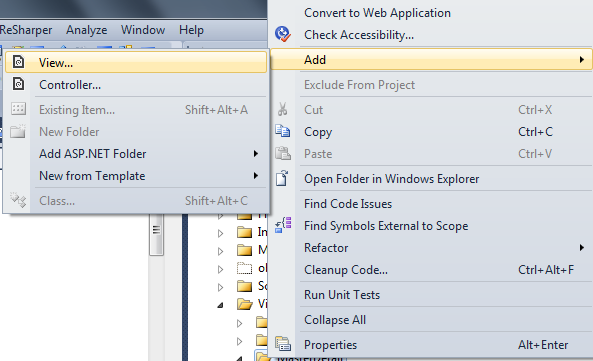
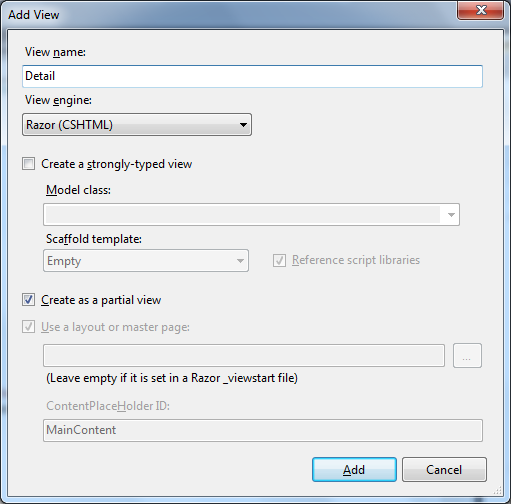
In that partial view (in my case Detail.cshtml) write code like:
@model IEnumerable<MasterDetailDataTables.Models.myDetail>

<table id="invoiceDetails" class="display dataTable">

    <thead>
        <tr>
            <th>
                @Html.DisplayNameFor(model => model.myKey1) @*name of the table, remove it if you do not want name to be visible*@
            </th>
        </tr>
    </thead>

    <tbody>
    </tbody>

    <tfoot>
        <tr>
            <th>
                @Html.DisplayNameFor(model => model.myKey1) @*name of the table, remove it if you do not want name to be visible*@
            </th>
        </tr>
    </tfoot>

</table>
Index.cshtml should look like:
@model IEnumerable<MasterDetailDataTables.Models.myMaster>

@section scripts {

    @Styles.Render("~/Content/themes/base/css")
    @Scripts.Render("~/bundles/table")

    <script src="/../../Scripts/myDataTables.js" type="text/javascript"></script>
}

@{
    ViewBag.Title = "Index";
}

<h2>Index</h2>

<p>
    @Html.ActionLink("Create New", "Create")
</p>
<table id="myDataTable" class="display dataTable">

    <thead>
        <tr>
            <th>
                @Html.DisplayNameFor(model => model.MyMasterName) @*name of the table, remove it if you do not want name to be visible*@
            </th>
        </tr>
    </thead>

    <tbody>
    </tbody>

    <tfoot>
        <tr>
            <th>
                @Html.DisplayNameFor(model => model.MyMasterName) @*name of the table, remove it if you do not want name to be visible*@
            </th>
        </tr>
    </tfoot>

</table>

@Html.Action("Detail")
Create methods like:
        public ActionResult Detail()
        {
            return PartialView();
        }

        public ActionResult MasterJson(
            jQueryDataTableParamModel param
        )
        {

            var myResult = Json(new
            {
                sEcho = param.sEcho,
                iTotalRecords = db.myMaster.Count(),
                iTotalDisplayRecords = db.myMaster.Count(),
                aaData = db.myMaster.OrderBy(x => x.MyMasterName).Skip(param.iDisplayStart).Take(param.iDisplayLength).ToList()

            },
                JsonRequestBehavior.AllowGet
            );
            return myResult;
        }

        public ActionResult DetailJSON(
            jQueryDataTableParamModel param
            )
        {

            var myResult = Json(new
            {
                sEcho = param.sEcho,
                iTotalRecords = db.myDetail.Count(),
                iTotalDisplayRecords = db.myDetail.Count(),
                aaData = db.myDetail.Where(x => ((x.myKey1 == param.myKey1) & (x.myKey2 == param.myKey2))).OrderBy(x => x.myKey1).Skip(param.iDisplayStart).Take(param.iDisplayLength).ToList()
                //aaData = db.Invoices.ToList()
            },
                JsonRequestBehavior.AllowGet
            );
            return myResult;
        }
Line:
aaData = db.myDetail.Where(x => ((x.myKey1 == param.myKey1) & (x.myKey2 == param.myKey2))).OrderBy(x => x.myKey1).Skip(param.iDisplayStart).Take(param.iDisplayLength).ToList()
Mean that entity framework will page the data. Taken from here.
DetailJson and MasterJson will be used later in ajax call.
jQueryDataTableParamModel should look like:
public class jQueryDataTableParamModel
        {
            ///
            /// Request sequence number sent by DataTable,
            /// same value must be returned in response
            ///
            public string sEcho { get; set; }

            ///
            /// Text used for filtering
            ///
            public string sSearch { get; set; }

            ///
            /// Number of records that should be shown in table
            ///
            public int iDisplayLength { get; set; }

            ///
            /// First record that should be shown(used for paging)
            ///
            public int iDisplayStart { get; set; }

            ///
            /// Number of columns in table
            ///
            public int iColumns { get; set; }

            ///
            /// Number of columns that are used in sorting
            ///
            public int iSortingCols { get; set; }

            ///
            /// Comma separated list of column names
            ///
            public string sColumns { get; set; }

            public int myKey1 { get; set; }
            public int myKey2 { get; set; }
        }
Where
public int myKey1 { get; set; }
public int myKey2 { get; set; }
are added by me,as additional parameter sent from datatables
Download datatables and add media folder to your project, as I already described it here.
To \App_Start\BundleConfig.cs add code like:
bundles.Add(new ScriptBundle("~/bundles/table").Include(
                    "~/Scripts/media/js/jquery.dataTables.js"));

bundles.Add(new StyleBundle("~/Content/themes/base/css").Include(
					"~/Scripts/media/css/jquery.ui.core.css",
					"~/Scripts/media/css/jquery.ui.resizable.css",
					"~/Scripts/media/css/demo_table.css"));
Finaly, javascript:
var oTable;
var oInvoiceDetail;
var iMark = 0;
var iNumber = 0;

$(document).ready(function () {
	invoiceDetailsClick();
	oTable = $('#myDataTable').dataTable({
		"bProcessing": true,
		"bServerSide": true,
		"iDisplayLength": 10,
		"sAjaxSource": "MasterDetail/MasterJson",
		"fnServerData": function (sUrl, aoData, fnCallback, oSettings) {
			oSettings.jqXHR = $.ajax({
				"type": "POST",
				"url": sUrl,
				"data": aoData,
				"success": fnCallback,
				"dataType": "json",
				"cache": false
			});
		},
		"aoColumns": [
			{ "sWidth": '200px', "mData": "MyMasterName" }
		]
	});

});

function invoiceDetailsClick() {

	oInvoiceDetail = $('#invoiceDetails').dataTable({
		"bProcessing": true,
		"bServerSide": true,
		"iDisplayLength": 10,
		"sAjaxSource": "MasterDetail/DetailJson",
		"bFilter": false, //hides search field
		"bPaginate": false, //hides pagination
		"bInfo": false, //hides info
		"fnServerData": function (sUrl, aoData, fnCallback, oSettings) {
			/* Add some extra data to the sender */
			aoData.push({ "name": "myKey1", "value": iMark });
			aoData.push({ "name": "myKey2", "value": iNumber });
			oSettings.jqXHR = $.ajax({
				"type": "POST",
				"url": sUrl,
				"data": aoData,
				"success": fnCallback,
				"dataType": "json",
				"cache": false
			});
		},
		"aoColumns": [
			{ "sWidth": '200px', "mData": "myKey1" }
		]
	});
}


$("#myDataTable tbody").click(function (event) {
	$(oTable.fnSettings().aoData).each(function () {
		$(this.nTr).removeClass('row_selected');
	});

	$(event.target.parentNode).addClass('row_selected');

	var anSelected = fnGetSelected(oTable);

	var iRow = oTable.fnGetPosition(anSelected[0]);

	var data = oTable.fnGetData(iRow);


	iMark = data.myKey1;
	iNumber = data.myKey2;
	oInvoiceDetail.fnReloadAjax(); //data.Mark, data.Number
});

$.fn.dataTableExt.oApi.fnReloadAjax = function (oSettings, sNewSource, fnCallback, bStandingRedraw) {
	if (sNewSource !== undefined && sNewSource !== null) {
		oSettings.sAjaxSource = sNewSource;
	}

	// Server-side processing should just call fnDraw
	if (oSettings.oFeatures.bServerSide) {
		this.fnDraw();
		return;
	}

	this.oApi._fnProcessingDisplay(oSettings, true);
	var that = this;
	var iStart = oSettings._iDisplayStart;
	var aData = [];

	this.oApi._fnServerParams(oSettings, aData);

	oSettings.fnServerData.call(oSettings.oInstance, oSettings.sAjaxSource, aData, function (json) {
		/* Clear the old information from the table */
		that.oApi._fnClearTable(oSettings);

		/* Got the data - add it to the table */
		var aData = (oSettings.sAjaxDataProp !== "") ?
	that.oApi._fnGetObjectDataFn(oSettings.sAjaxDataProp)(json) : json;

		for (var i = 0; i < aData.length; i++) {
			that.oApi._fnAddData(oSettings, aData[i]);
		}

		oSettings.aiDisplay = oSettings.aiDisplayMaster.slice();

		that.fnDraw();

		if (bStandingRedraw === true) {
			oSettings._iDisplayStart = iStart;
			that.oApi._fnCalculateEnd(oSettings);
			that.fnDraw(false);
		}

		that.oApi._fnProcessingDisplay(oSettings, false);

		/* Callback user function - for event handlers etc */
		if (typeof fnCallback == 'function' && fnCallback !== null) {
			fnCallback(oSettings);
		}
	}, oSettings);
};

function fnGetSelected(oTableLocal) {
	var aReturn = new Array();
	var aTrs = oTableLocal.fnGetNodes();

	for (var i = 0; i < aTrs.length; i++) {
		if ($(aTrs[i]).hasClass('row_selected')) {
			aReturn.push(aTrs[i]);
		}
	}
	return aReturn;
}
- Details
- Written by: Stanko Milosev
- Category: MVC 4
- Hits: 21644
In this article I will show you how to use datatables.net in MVC4 with JSON.
First start VS, choose MVC4 and empty project.
Because we are creating empty project in reference list add EntityFramework, in my case, we have to add DLL like:
C:\Program Files (x86)\Microsoft ASP.NET\ASP.NET MVC 4\Packages\EntityFramework.5.0.0\lib\net40\EntityFramework.dll
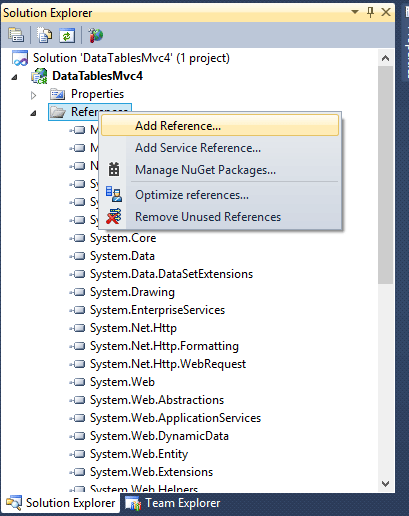
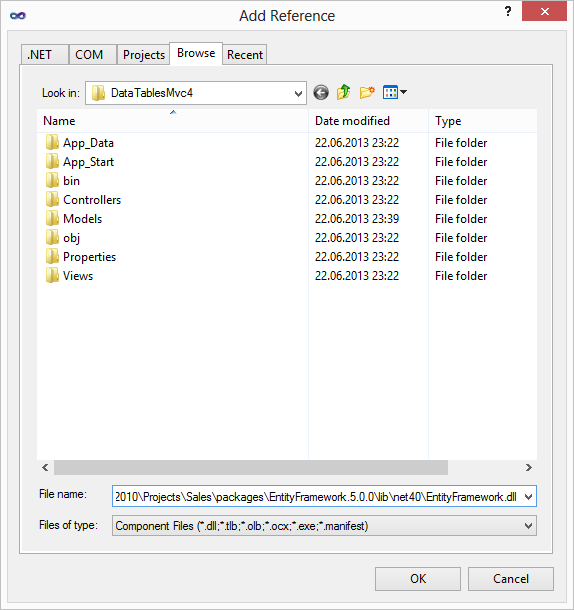
In same way add System.Web.Optimization: C:\Program Files (x86)\Microsoft ASP.NET\ASP.NET MVC 4\Packages\Microsoft.AspNet.Web.Optimization.1.0.0\lib\net40\System.Web.Optimization.dll
and WebGrease: C:\Program Files (x86)\Microsoft ASP.NET\ASP.NET MVC 4\Packages\WebGrease.1.1.0\lib\WebGrease.dll
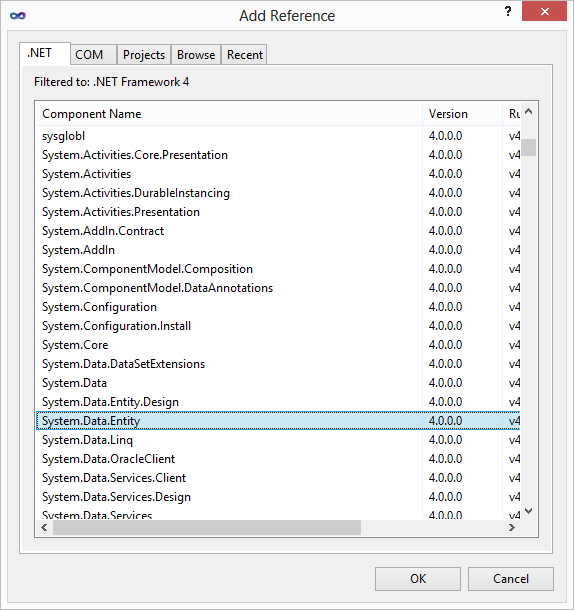
Also add System.Data.Entity:
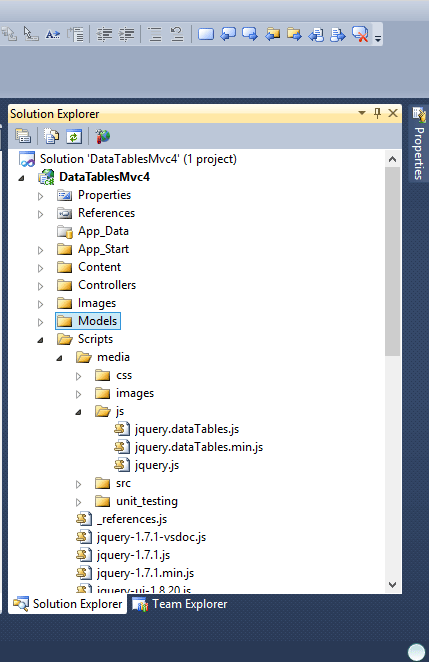
Download latest version of datatables, and I just took all media folder and added to scripts part (scripts part I also just copy / pasted from generated project - not empty), like on picture, and script folder I copied from another project:
Now there is part which I don't understand, unfortunately, we need @RenderSection("scripts", required: false), and because of that I just added Shared folder and _ViewStart.cshtml, most probably because of this:
"RenderSection can only exist in Layout files (i.e. master pages)... its purpose is to allow the pages you can request directly to target various sections of a Layout (layout being a file common to all pages which choose to use it) and supply content for these different sections."
From here.
In my D:\Projects\VS\DataTablesMvc4\Views\Shared\_Layout.cshtml I have lines like:
  @Scripts.Render("~/bundles/jquery")
  @RenderSection("scripts", required: false)
</body>
And also, at beginning of _Layout.cshtml I added:
@using System.Web.Optimization
In App_Start add file BundleConfig.cs and code:
using System.Web.Optimization;

namespace DataTablesMvc4
{
    public class BundleConfig
    {
        // For more information on Bundling, visit http://go.microsoft.com/fwlink/?LinkId=254725
        public static void RegisterBundles(BundleCollection bundles)
        {
            bundles.Add(new ScriptBundle("~/bundles/jquery").Include(
                        "~/Scripts/jquery-{version}.js"));

            bundles.Add(new ScriptBundle("~/bundles/jqueryui").Include(
                        "~/Scripts/jquery-ui-{version}.js"));

            bundles.Add(new ScriptBundle("~/bundles/jqueryval").Include(
                        "~/Scripts/jquery.unobtrusive*",
                        "~/Scripts/jquery.validate*"));

            // Use the development version of Modernizr to develop with and learn from. Then, when you're
            // ready for production, use the build tool at http://modernizr.com to pick only the tests you need.
            bundles.Add(new ScriptBundle("~/bundles/modernizr").Include(
                        "~/Scripts/modernizr-*"));

            bundles.Add(new StyleBundle("~/Content/css").Include("~/Content/site.css"));

            bundles.Add(new StyleBundle("~/Content/themes/base/css").Include(
                        "~/Content/themes/base/jquery.ui.core.css",
                        "~/Content/themes/base/jquery.ui.resizable.css",
                        "~/Content/themes/base/jquery.ui.selectable.css",
                        "~/Content/themes/base/jquery.ui.accordion.css",
                        "~/Content/themes/base/jquery.ui.autocomplete.css",
                        "~/Content/themes/base/jquery.ui.button.css",
                        "~/Content/themes/base/jquery.ui.dialog.css",
                        "~/Content/themes/base/jquery.ui.slider.css",
                        "~/Content/themes/base/jquery.ui.tabs.css",
                        "~/Content/themes/base/jquery.ui.datepicker.css",
                        "~/Content/themes/base/jquery.ui.progressbar.css",
                        "~/Content/themes/base/jquery.ui.theme.css"));

            bundles.Add(new ScriptBundle("~/bundles/table").Include(
                                "~/Scripts/media/js/jquery.dataTables.js"));

            bundles.Add(new StyleBundle("~/Content/themes/base/css").Include(
                                "~/Scripts/media/css/jquery.ui.core.css",
                                "~/Scripts/media/css/jquery.ui.resizable.css",
                                "~/Scripts/media/css/jquery.dataTables.css"));
        }
    }
}
This code is just copy / paste from generated file from Microsoft, only part:
            bundles.Add(new ScriptBundle("~/bundles/table").Include(
                                "~/Scripts/media/js/jquery.dataTables.js"));
Is actually my.
In file Global.asax, add code:
BundleConfig.RegisterBundles(BundleTable.Bundles);
In your Web.config add connection string something like:
<connectionStrings>
    <add name="MyTableDBContext" connectionString="Data Source=ServerName;
                                                    Initial Catalog=DataTablesWithJsonDB;
                                                    Integrated Security=False;
                                                    Persist Security Info=True;
                                                    User ID=userId;
                                                    Password=pass"
             providerName="System.Data.SqlClient" />
  </connectionStrings>
Create a model like:
using System.Data.Entity;

namespace DataTablesMvc4.Models
{

    public class DataTablesWithJson
    {
        public int Id { get; set; }
        public string Name { get; set; }
    }

	public class MyTableDbContext : DbContext
	{
		public DbSet<DataTablesWithJson> DataTablesWithJson { get; set; }
	}

}
Build the solution, generate controllers, and create method like:
        public ActionResult AjaxHand(
            jQueryDataTableParamModel param
        )
        {

            //var dataTablesWithJson = db.DataTablesWithJson.Include(p => p.Name);

            return Json(new
            {
                sEcho = param.sEcho,
                iTotalRecords = db.DataTablesWithJson.Count(),
                iTotalDisplayRecords = db.DataTablesWithJson.Count(),
                aaData = db.DataTablesWithJson.ToList()
            },
                JsonRequestBehavior.AllowGet
            );
        }
Where jQueryDataTableParamModel is:
public class jQueryDataTableParamModel
{
	///
	/// Request sequence number sent by DataTable,
	/// same value must be returned in response
	///
	public string sEcho { get; set; }

	///
	/// Text used for filtering
	///
	public string sSearch { get; set; }

	///
	/// Number of records that should be shown in table
	///
	public int iDisplayLength { get; set; }

	///
	/// First record that should be shown(used for paging)
	///
	public int iDisplayStart { get; set; }

	///
	/// Number of columns in table
	///
	public int iColumns { get; set; }

	///
	/// Number of columns that are used in sorting
	///
	public int iSortingCols { get; set; }

	///
	/// Comma separated list of column names
	///
	public string sColumns { get; set; }
}
And finally your Index.cshtml should look like:
@using System.Web.Optimization
@model IEnumerable<DataTablesMvc4.Models.DataTablesWithJson>

@section scripts {

    @Styles.Render("~/Content/themes/base/css")
    @Scripts.Render("~/bundles/table")

    <script type="text/javascript">
        $(document).ready(function () {
            var oTable = $('#myDataTable').dataTable({
                "bProcessing": true,
                "bServerSide": true,
                "sAjaxSource": "AjaxHand",
                "fnServerData": function (sUrl, aoData, fnCallback, oSettings) {
                    oSettings.jqXHR = $.ajax({
                        "type": "POST",
                        "url": sUrl,
                        "data": aoData,
                        "success": fnCallback,
                        "dataType": "json",
                        "cache": false
                    });
                },
                "aoColumns": [
                    { "sWidth": '200px', "mData": "Name" }
                ]
            });

        });
    </script>
}

@{
    ViewBag.Title = "Index";
}


<h2>Index</h2>

<table id="myDataTable">

    <thead>
        <tr>
            <th>
                @Html.DisplayNameFor(model => model.Name)
            </th>
        </tr>
    </thead>

    <tbody>
    </tbody>

    <tfoot>
        <tr>
            <th>
                @Html.DisplayNameFor(model => model.Name)
            </th>
        </tr>
    </tfoot>

</table>
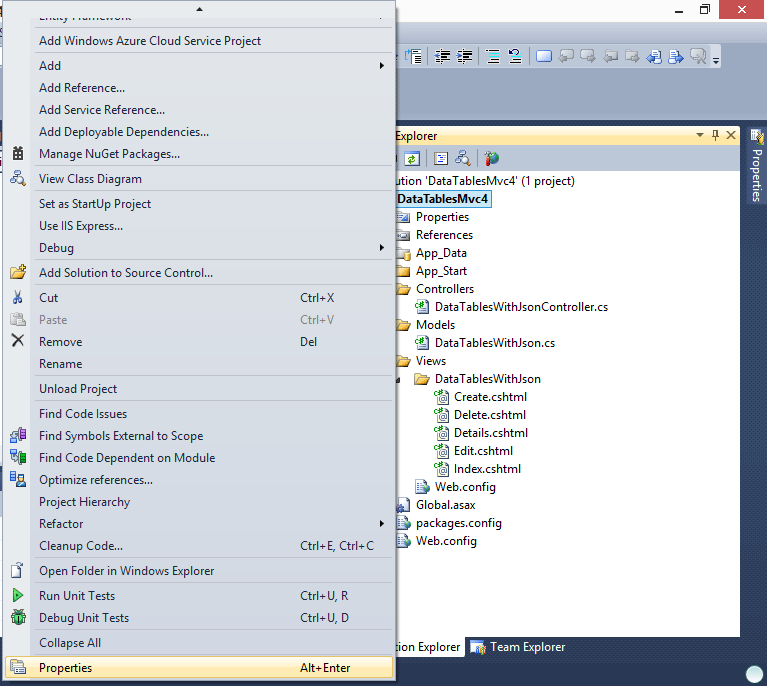
I also added my controller to be as startup page, right click on project (not solution), and then click properties:
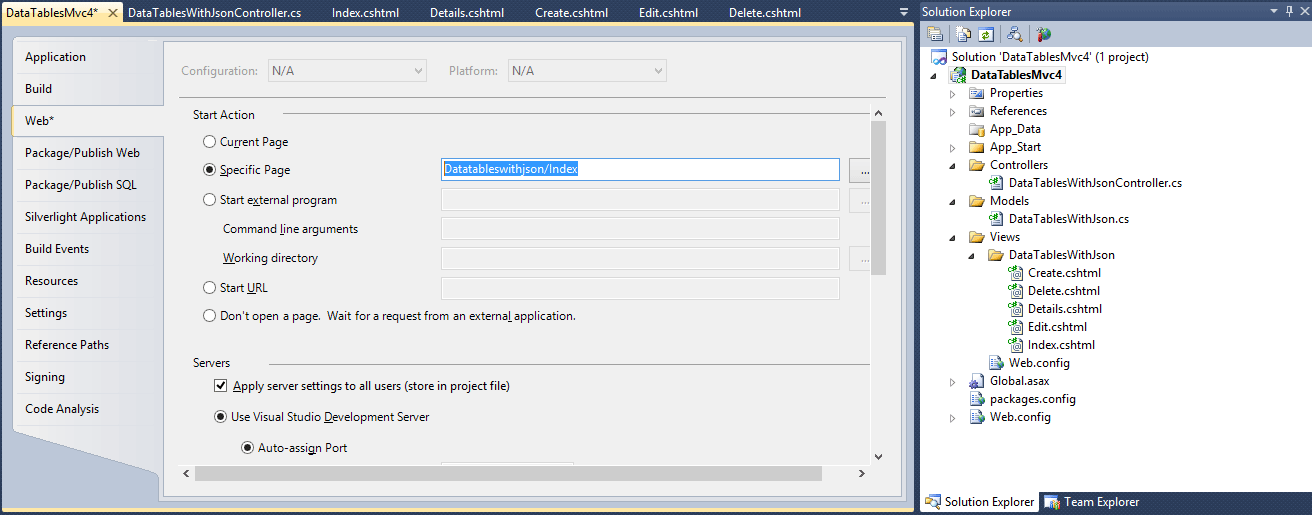
Click on WEB tab, and in specific page write address of your controller, in my case that is Datatableswithjson/Index
Example you can download from here.
Here you can see example of master - detail with datatables.
- Details
- Written by: Stanko Milosev
- Category: MVC 3
- Hits: 5441
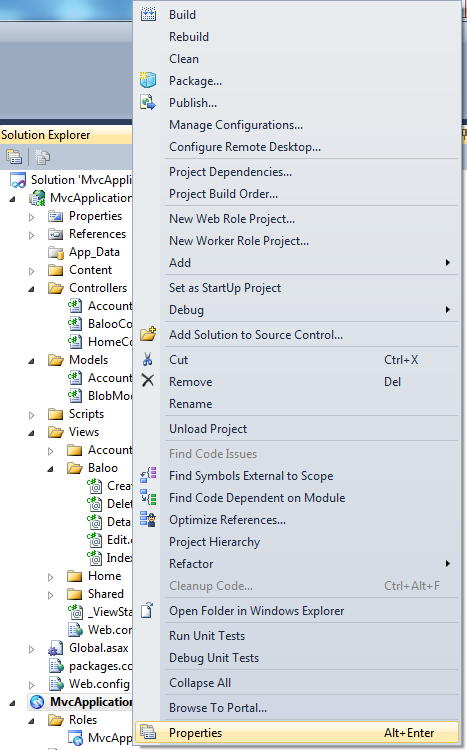
To choose which configuration to use in your cloud services, right click on the Azure project, and click properties:
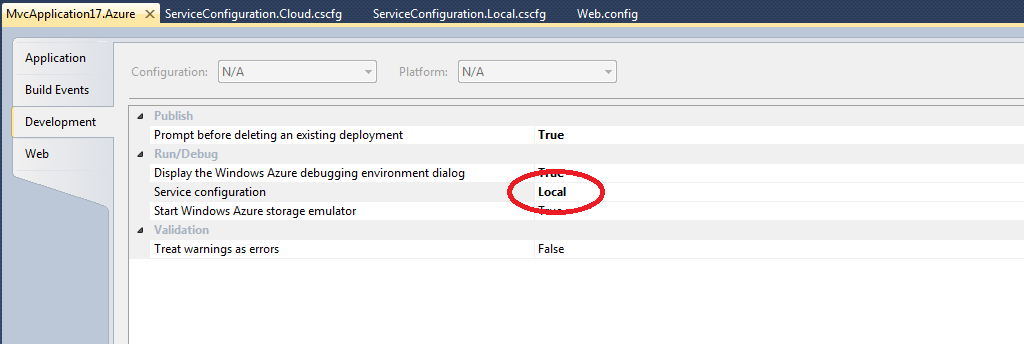
Then go to Development, and there you can choose which configuration you want to use:
- Details
- Written by: Stanko Milosev
- Category: MVC 3
- Hits: 5742
For this article I was using Windows Azure and SQL Database Tutorials - Tutorial 3: Using Windows Azure Blob Service.
In your controller you must to have code like:
public class BalooController : Controller
{
	private MyTableDBContext db = new MyTableDBContext();
	private const string messageImageBlobName = "golfermessageboardpics";
	private CloudBlobClient blobClient;
	private CloudBlobContainer blobContainer;
	private static CloudStorageAccount storageAccount;
	private CloudTableClient tableClient;

	public BalooController ()
	{
		string connectionString = RoleEnvironment.GetConfigurationSettingValue("Microsoft.WindowsAzure.Plugins.Diagnostics.ConnectionString");

		storageAccount = CloudStorageAccount.Parse(connectionString);
		tableClient = new CloudTableClient(storageAccount.TableEndpoint.AbsoluteUri, storageAccount.Credentials);
		tableClient.CreateTableIfNotExist("myBlob");

		blobClient = storageAccount.CreateCloudBlobClient();
		blobContainer = blobClient.GetContainerReference(messageImageBlobName);
		blobContainer.CreateIfNotExist();

		var permissions = blobContainer.GetPermissions();
		permissions.PublicAccess = BlobContainerPublicAccessType.Container;
		blobContainer.SetPermissions(permissions);
	}

	//
	// GET: /Baloo/

	public ViewResult Index()
	{
		return View(db.BlobModel.ToList());
	}
Microsoft.WindowsAzure.Plugins.Diagnostics.ConnectionString
is in
MvcApplication17\MvcApplication17.Azure\ServiceConfiguration.Local.cscfg (if name of your app is MvcApplication17 :) )
and golfermessageboardpics is actual name of the blob.