
- Details
- Written by: Stanko Milosev
- Category: GIT
- Hits: 11259
First download git for Windows. There are lot of git installations, I downloaded this one. After I created two folders, like First and Second, then I opened First folder in command prompt, like I described it here. Then in command prompt I executed command:
git init
After execution of that command I received message like:
Initialized empty Git repository in C:/gitTest/First/.git/
In notepad I wrote one text file, which had only one line "first", and I name it first.txt. Now I wrote:
git add .
Dot on the end means to everything what is in that folder, and after I wrote:
git commit -m "test"
Now we can go to second folder, and open command prompt from there, and write:
git clone c:\gitTest\First
Now you will see in your folder "Second" there will be folder First, with first.txt file. Now lets open file:
C:\gitTest\Second\First\first.txt
and write, for example, second, save and close the file in command prompt go to folder for example:
C:\gitTest\Second\First
and write:
git add "first.txt"
after that:
git commit -m "test2"
Now lets go to first folder, and pull changes, that means in folder C:\gitTest\First in command prompt write:
git pull C:\gitTest\Second\First
Open file C:\gitTest\First\first.txt and see the magic.
- Details
- Written by: Stanko Milosev
- Category: Powershell
- Hits: 5751
To set the working directory for powershell add the following command to your PowerShell profile:
Set-Location c:\scripts
To Create a PowerShell Profile
1. Create a folder in your Documents folder called WindowsPowerShell in my case that is C:\Users\pera.virtualOne\Documents\WindowsPowerShell
2. Create a file called profile.ps1 inside this folder
3. Add any desired initialization commands to this file (Set-Location c:\scripts) and save it
4. Every time you launch PowerShell, the profile script will be executed
Copy / pasted from here.
- Details
- Written by: Stanko Milosev
- Category: Powershell
- Hits: 5335
If your powershell looks like:
param($myTestParameter)

function TestParameter()
{
	Write-Host "Parameter is: $myTestParameter"
}
Saved as myTest.ps1, for example.
Then to use parameter, call script like:
. .\myTest.ps1 -myTestParameter "Test parameter"
Notice that myTestParameter is without dollar sign, and then you can call function like TestParameter, result should be something like:
Parameter is: Test parameter
Example download from here.
- Details
- Written by: Stanko Milosev
- Category: Windows 8
- Hits: 9198
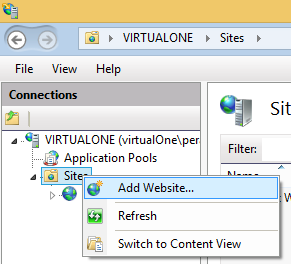
Right click on Sites -> Add Website
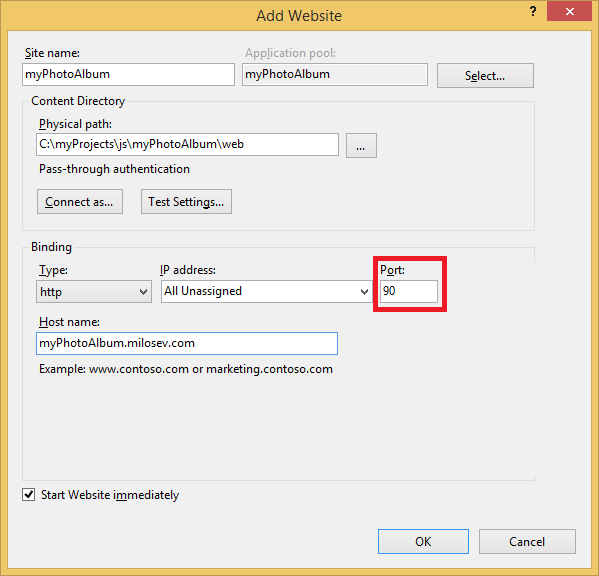
Then fill fields, only watchout on port number, because if your default web site is running, you didn't stop it, then your new web site will not be able to start, since only one service can listen same port in the same time:
Open hosts file (as the administrator), in my case location of hosts file is in:
C:\Windows\System32\drivers\etc
Then I wrote:
127.0.0.1 myphotoalbum.milosev.com
Note that I wrote without port number, now in your browser you can write:
myphotoalbum.milosev.com:90