
- Details
- Written by: Stanko Milosev
- Category: WPF
- Hits: 6750
In this article I explained how to use user control with datacontext which is defined in the code behind, now I will explain how to use datacontext without code behind.
User control XAML:
<UserControl x:Class="MyUserControl.myControl"
             xmlns="http://schemas.microsoft.com/winfx/2006/xaml/presentation"
             xmlns:x="http://schemas.microsoft.com/winfx/2006/xaml"
             xmlns:mc="http://schemas.openxmlformats.org/markup-compatibility/2006"
             xmlns:d="http://schemas.microsoft.com/expression/blend/2008"
             mc:Ignorable="d"
             d:DesignHeight="300" d:DesignWidth="300">
    <Grid>
      <Label Content="{Binding myContent}"/>
    </Grid>
</UserControl>
Then main window XAML:
<Window x:Class="UserControlDataContext.MainWindow"
        xmlns="http://schemas.microsoft.com/winfx/2006/xaml/presentation"
        xmlns:x="http://schemas.microsoft.com/winfx/2006/xaml"
        xmlns:myUserControl="clr-namespace:MyUserControl;assembly=MyUserControl"
        xmlns:viewModel="clr-namespace:UserControlDataContext.ViewModel"
        Title="MainWindow" Height="350" Width="525">
    <Grid>
        <Grid.Resources>
          <viewModel:UserControlDataContextViewModel x:Key="UserControlDataContextViewModel" />
        </Grid.Resources>
        <myUserControl:myControl DataContext="{Binding Source={StaticResource UserControlDataContextViewModel}}"/>
    </Grid>
</Window>
Here notice line: <myUserControl:myControl DataContext="{Binding Source={StaticResource UserControlDataContextViewModel}}"/>
And view model looks like this:
public class UserControlDataContextViewModel
{
	public string myContent { get; set; }

	public UserControlDataContextViewModel()
	{
		myContent = "test";
	}
}
Example project you can download from here.
- Details
- Written by: Stanko Milosev
- Category: WPF
- Hits: 5427
Playing with ComboBox.
Today I was playing little with ComboBox, and I made some binding, so here is my XAML:
<Window x:Class="TemplateChooser.MainWindow"
        xmlns="http://schemas.microsoft.com/winfx/2006/xaml/presentation"
        xmlns:x="http://schemas.microsoft.com/winfx/2006/xaml"
        xmlns:viewModel="clr-namespace:TemplateChooser.ViewModel"
        Title="MainWindow" Height="350" Width="525">
    <Grid>

        <Grid.Resources>
            <viewModel:TemplateChooserViewModel x:Key="TemplateChooserViewModel" />
        </Grid.Resources>

        <Grid.RowDefinitions>
          <RowDefinition Height="30"/>
          <RowDefinition Height="30"/>
        </Grid.RowDefinitions>

        <ComboBox Name="myCombo" DataContext="{StaticResource TemplateChooserViewModel}" ItemsSource="{Binding TemplateItems}" SelectedValue="{Binding TemplateItems[0]}"/>
        <Button Grid.Row="1" Content="{Binding Path=SelectedValue, ElementName=myCombo}"/>

    </Grid>
</Window>
Here notice line:
SelectedValue="{Binding TemplateItems[0]}"
After that, notice how I binded button
<Button Grid.Row="1" Content="{Binding Path=SelectedValue, ElementName=myCombo}"/>
I am not sure if this binding is proper, but it is working :)
Here is my view model:
public class TemplateChooserViewModel
{
	public IEnumerable<string> TemplateItems { get; set; }

	public TemplateChooserViewModel()
	{
		TemplateItems = new[] { "Template1", "Template2" };
	}
}
Example project you can download from here.
- Details
- Written by: Stanko Milosev
- Category: WPF
- Hits: 10059
Name of the article, and content taken from here
I was playing with WPF WebBrowser control, but it seems that WPF WebBrowser is either not finished yet, or I don't know how to use it. First problem is that it seems that I am unable to suppress script errors. Another problem was that I couldn't find easy way to check if WebBrowser finished loading.
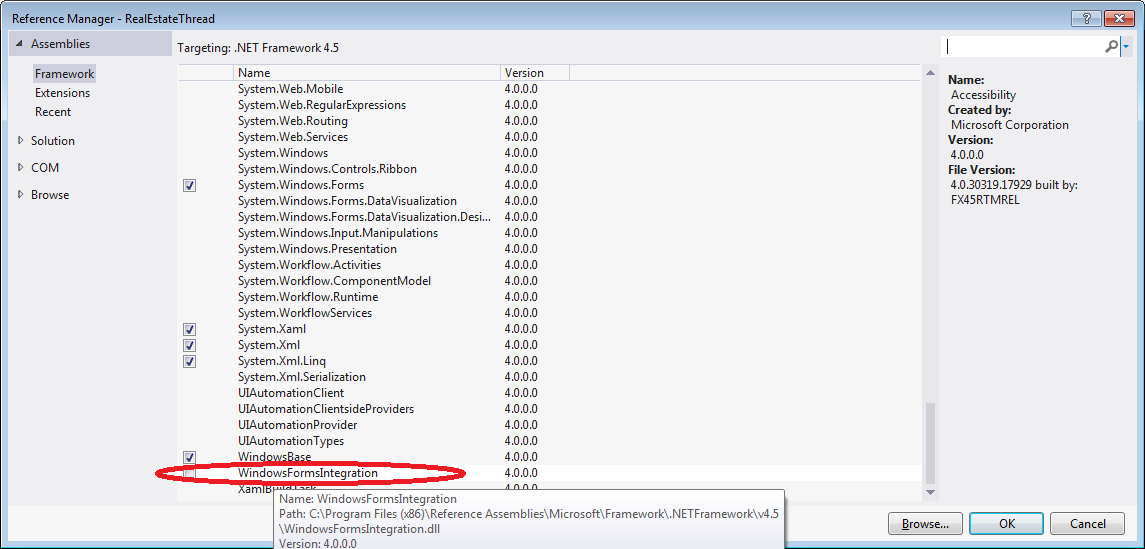
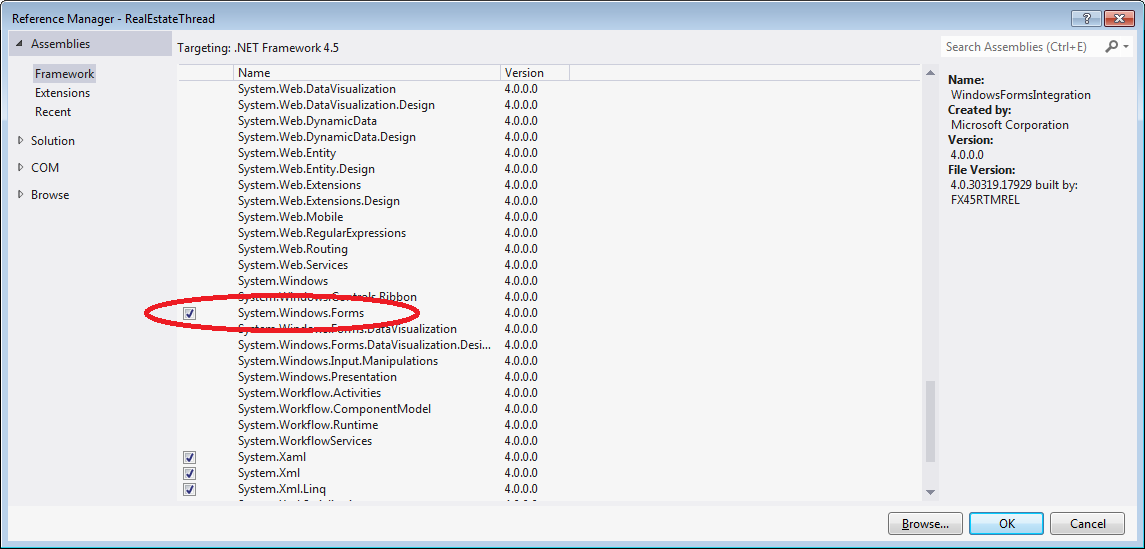
Add to reference list System.Windows.Forms, and WindowsFormsIntegration, like on the pictures:
Your XAML should look like:
<Window x:Class="WebBrowser.MainWindow"
        xmlns="http://schemas.microsoft.com/winfx/2006/xaml/presentation"
        xmlns:x="http://schemas.microsoft.com/winfx/2006/xaml"
        Title="MainWindow" Height="350" Width="525"
		Loaded="Window_Loaded">
    <Grid Name="grid1">

    </Grid>
</Window>
Notice lines:
Loaded="Window_Loaded"
and
<Grid Name="grid1">
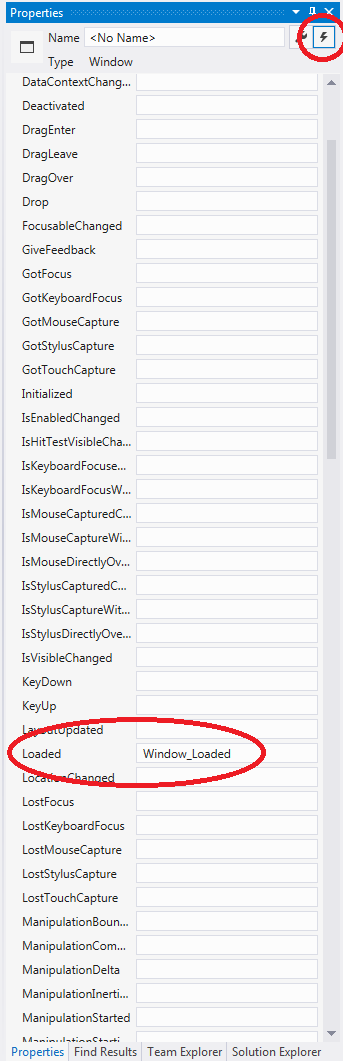
To get line Loaded="Window_Loaded", you can also click on the window, go to Properties, events, and double click on loaded:
Then your code behind should look like:
public partial class MainWindow : Window
{
	public MainWindow()
	{
		InitializeComponent();
	}

	private void Window_Loaded(object sender, RoutedEventArgs e)
	{
		System.Windows.Forms.Integration.WindowsFormsHost host = new System.Windows.Forms.Integration.WindowsFormsHost();
		System.Windows.Forms.WebBrowser browser = new System.Windows.Forms.WebBrowser();

		host.Child = browser;
		this.grid1.Children.Add(host);

		browser.ScriptErrorsSuppressed = true;
		browser.Navigate("http://www.milosev.com");
	}
}
Or, if you want to use browser in some another class, then it should look like:
public partial class MainWindow : Window
{
	public static System.Windows.Forms.WebBrowser browser = new System.Windows.Forms.WebBrowser();

	public MainWindow()
	{
		InitializeComponent();
	}

	private void Window_Loaded(object sender, RoutedEventArgs e)
	{
		System.Windows.Forms.Integration.WindowsFormsHost host = new System.Windows.Forms.Integration.WindowsFormsHost();

		host.Child = browser;
		this.grid1.Children.Add(host);

		browser.ScriptErrorsSuppressed = true;
	}
}
Notice that browser is declared a static:
public static System.Windows.Forms.WebBrowser browser = new System.Windows.Forms.WebBrowser();
You can access it like:
MainWindow.browser.Navigate("http://www.milosev.com");
Example project you can download from here.
- Details
- Written by: Stanko Milosev
- Category: WPF
- Hits: 7153
Idea is to create collection of buttons in user control.
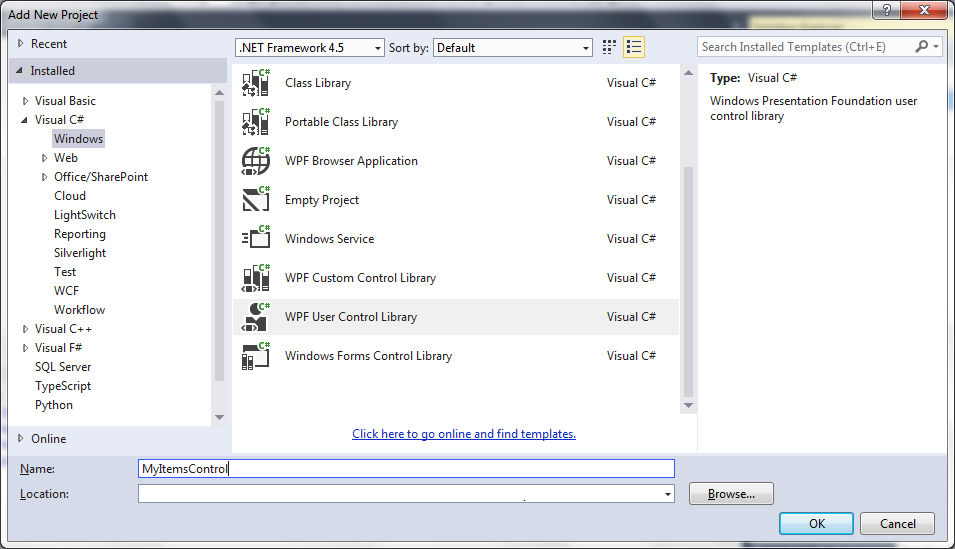
So, first start new project (i.e. ItemsControl), and, for example, in same solution add new WPF User Control Library:
After enter XAML like:
<UserControl x:Class="MyItemsControl.MyItemsControl"
             xmlns="http://schemas.microsoft.com/winfx/2006/xaml/presentation"
             xmlns:x="http://schemas.microsoft.com/winfx/2006/xaml"
             xmlns:mc="http://schemas.openxmlformats.org/markup-compatibility/2006"
             xmlns:d="http://schemas.microsoft.com/expression/blend/2008"
             mc:Ignorable="d"
             d:DesignHeight="300" d:DesignWidth="300">
    <Grid>
        <ItemsControl ItemsSource="{Binding MyTest}">

            <ItemsControl.ItemTemplate>
                <DataTemplate>
                    <Button Content="Test"/>
                </DataTemplate>
            </ItemsControl.ItemTemplate>

        </ItemsControl>
    </Grid>
</UserControl>
Notice line:
<ItemsControl ItemsSource="{Binding MyTest}">
MyTest property will be hidden in another class (SomeAnotherClass), not in the main datacontext, which I will explain later.
Now, save, and build the solution. In main project (ItemsControl), in references add your user control (MyItemsControl):
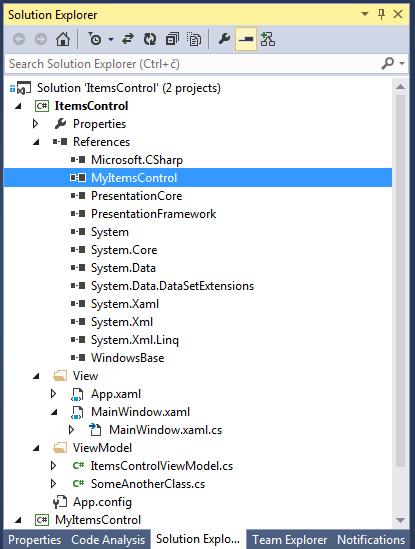
Write XAML like:
<Window x:Class="ItemsControl.MainWindow"
        xmlns="http://schemas.microsoft.com/winfx/2006/xaml/presentation"
        xmlns:x="http://schemas.microsoft.com/winfx/2006/xaml"
        xmlns:myItemsControl="clr-namespace:MyItemsControl;assembly=MyItemsControl"
        Title="MainWindow" Height="350" Width="525">
    <Grid>
        <myItemsControl:MyItemsControl DataContext="{Binding MyDataContext}"/>
    </Grid>
</Window>
Notice line:
<myItemsControl:MyItemsControl DataContext="{Binding MyDataContext}"/>
In code behind of main project (ItemsControl) I wrote something like:
public MainWindow()
{
  ItemsControlViewModel icvm;
  icvm = new ItemsControlViewModel();

  this.DataContext = icvm;
  InitializeComponent();
}
Then class ItemsControlViewModel looks like:
public class ItemsControlViewModel
{
	public SomeAnotherClass MyDataContext { get; set; }

	public ItemsControlViewModel()
	{
		MyDataContext = new SomeAnotherClass();
	}
}
Notice that here I created MyDataContext as a property, and I referenced that class to another class (SomeAnotherClass) which looks like:
public class SomeAnotherClass
{
	public IEnumerable<string> MyTest { get; set; }

	public SomeAnotherClass()
	{
		MyTest = new[] { "test" };
	}
}
Here notice:
public IEnumerable<string> MyTest { get; set; }
Which is property called from my user control, also notice that is of the type IEnumerable, that is because it is binded to ItemsControl.
Here you can download example.